HomeNewsCall of Duty: Black Ops 6 Graphics Issue Explained
Call of Duty: Black Ops 6 Graphics Issue Explained
Nov 12,2025Author: Michael
As players dive into AAA titles like Call of Duty, they demand top-tier performance. Yet Black Ops 6 may occasionally display underwhelming visuals, diminishing immersion and target visibility. If your Call of Duty: Black Ops 6 appears pixelated or unfocused, follow these fixes.
Contents
Reasons Behind Grainy Visuals in Black Ops 6Disabling Blur Effects in Call of Duty: Black Ops 6Enhancing Image Sharpness in Black Ops 6Optimizing Texture Details in Black Ops 6
Reasons Behind Grainy Visuals in Black Ops 6
When Black Ops 6 shows pixelation despite proper hardware configuration (like maximum resolution output), in-game settings are typically the culprit. Game updates occasionally reset preferences to defaults. Key visual adjustments reside in three graphics sections: Display, Quality, and View tabs. The Quality tab hosts the most impactful settings for resolving visual clarity issues.
Disabling Blur Effects in Call of Duty: Black Ops 6
Many developers incorporate Motion Blur and Depth of Field for cinematic appeal, mimicking real camera lens behavior. While effective for story-driven games, these features hinder target acquisition in competitive shooters like Call of Duty: Black Ops 6.
Disable these effects:
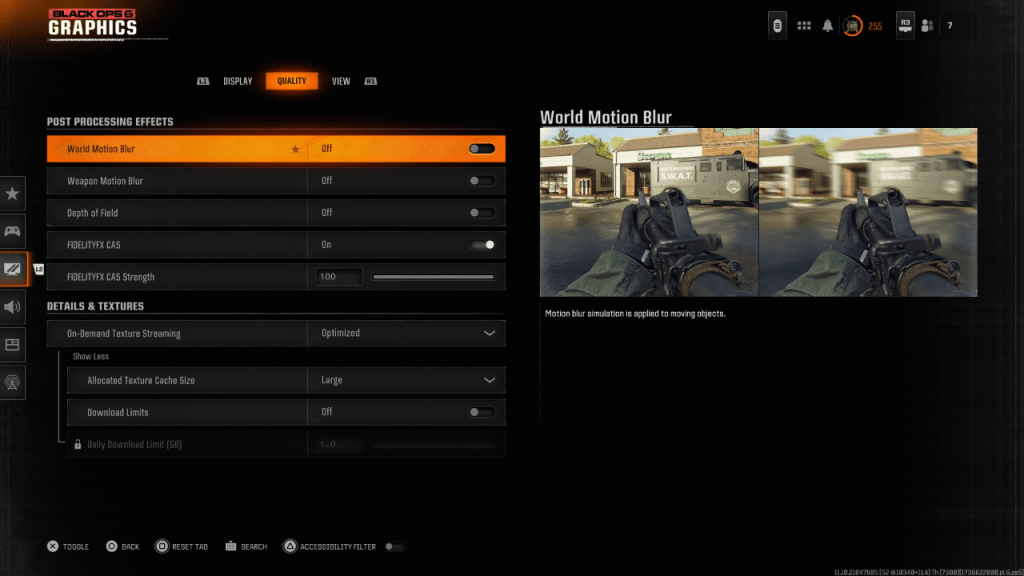
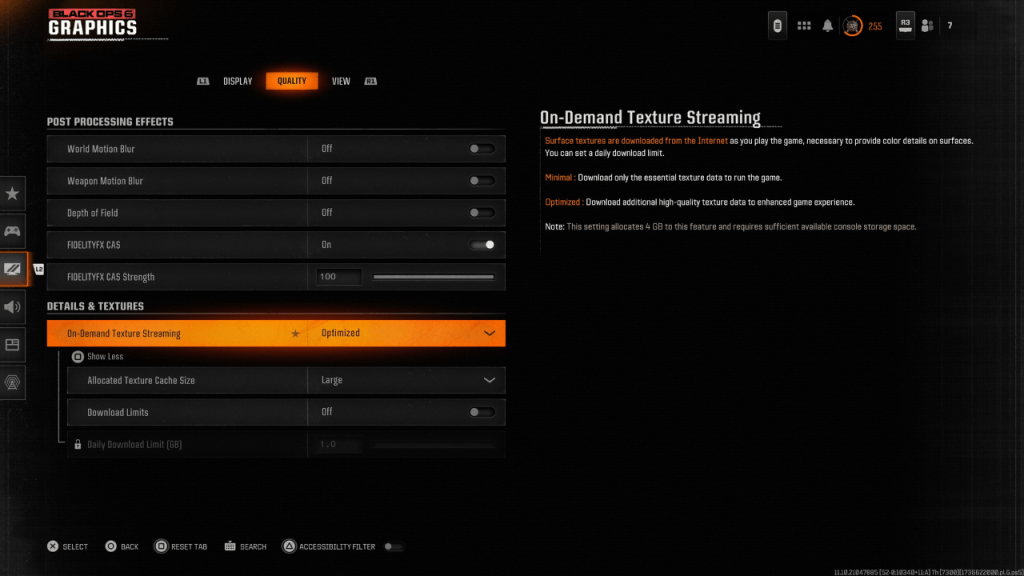
Navigate to Quality settings under GraphicsLocate Post Processing EffectsDisable World Motion BlurTurn off Weapon Motion BlurDeactivate Depth of Field
Enhancing Image Sharpness in Black Ops 6
Persisting visual issues may stem from improper gamma/brightness calibration. Access Display settings, adjust the Gamma/Brightness slider until the center Call of Duty logo becomes faintly visible. A mid-point value of 50 suits most displays, though individual calibration may vary.
Next, activate FIDELITYFX CAS in Quality settings to enable AMD's sharpening technology. While 50% strength is default, maximum setting boosts clarity significantly. If issues persist, examine On-Demand Texture Streaming settings.
Optimizing Texture Details in Black Ops 6
Black Ops 6 employs On-Demand Texture Streaming to manage file sizes, downloading textures dynamically rather than storing them locally. While storage-efficient, this can compromise visual fidelity.
For superior textures, access Details & Textures under Quality settings. Select Optimized mode to download high-resolution assets. Expand additional options via the "Show More" prompt.
Set Texture Cache Size to Large for better performance despite increased storage use. Players with unlimited data plans should disable Download Limits, ensuring continuous HD texture updates.
These steps resolve graininess and blur in Call of Duty: Black Ops 6.
The Final CBT is set to launch on June 12th, unveiling the new "Children From the Snowfield" storyline. Secure pre-registration early to unlock exclusive bonus rewards.After months of rigorous playtesting and building anticipation since its initial r
CD Projekt Red has officially confirmed that Cyberpunk 2 (formerly known as Orion) has entered pre-production, as revealed in the studio’s latest financial report. The announcement highlighted the massive success of the Phantom Liberty expansion for
Wuthering Waves version 3.1, part two, has officially launched on iOS and AndroidIt features brand-new five-star resonator convenes and weapon convenesNot to mention new story content featuring additional twists and turnsWith it being a Friday, it se
Calling all Peaky Blinders enthusiasts — we are returning to the Shelby universe. Netflix and the BBC have officially greenlit a two-season order for a sequel series.Set in Britain during 1953, the upcoming show has not yet revealed its casting choi

 LATEST ARTICLES