Unleash Your Inner Gamer: Playing Game Gear Classics on Your Steam Deck
The Sega Game Gear, a vibrant handheld console from the early 90s, now lives on thanks to the Steam Deck and EmuDeck. This guide walks you through setting up EmuDeck to enjoy your Game Gear ROMs on Valve's portable powerhouse. We'll cover installation, ROM transfer, artwork fixes, performance tweaks, and even troubleshooting Decky Loader after Steam Deck updates.
Before You Begin: Essential Prep Work
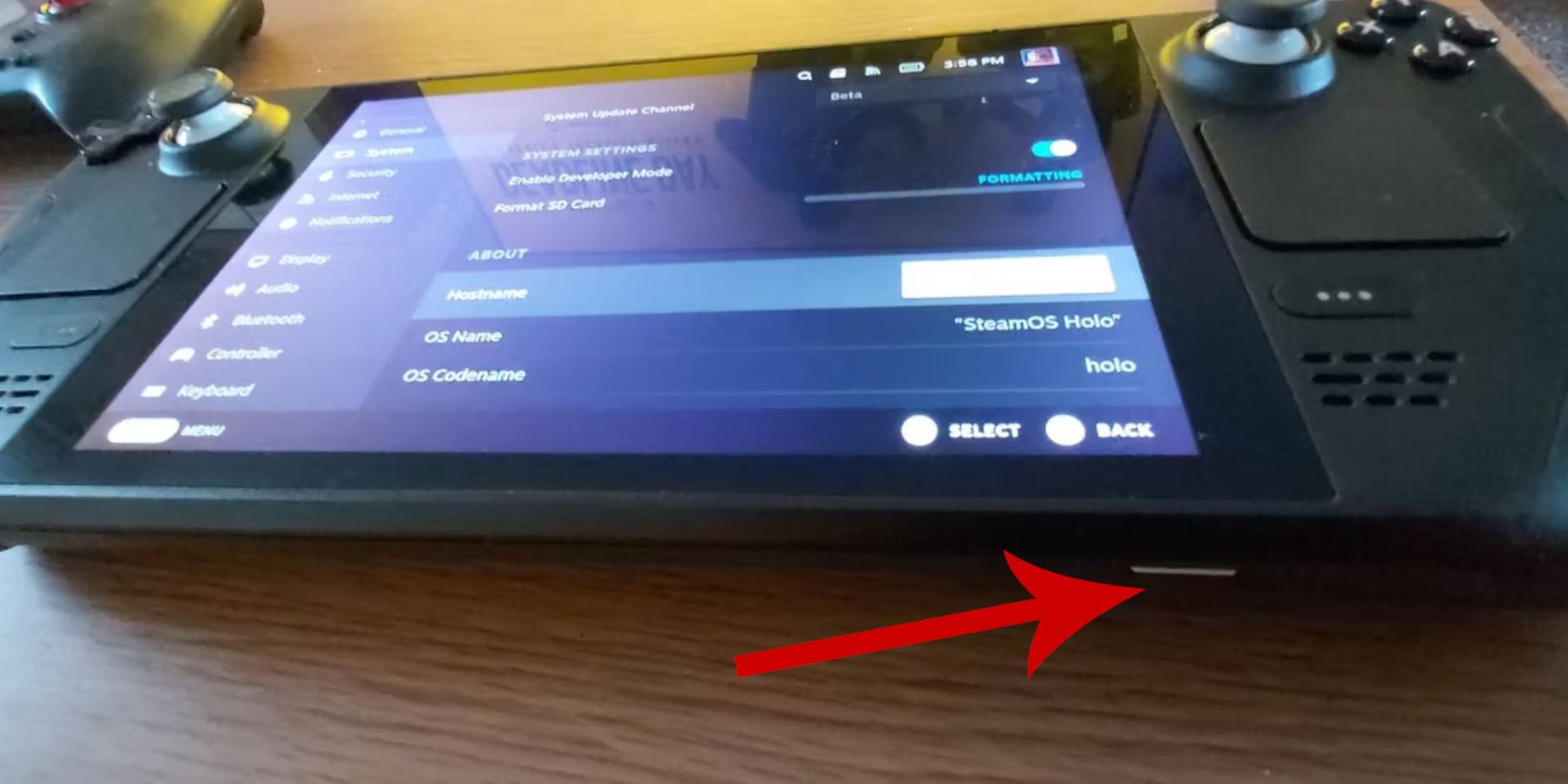 Before diving into EmuDeck, ensure you've taken these crucial steps:
- Enable Developer Mode: Navigate to Steam > System > System Settings > Enable Developer Mode. Then, within the Developer menu, enable CEF Remote Debugging. Restart your Steam Deck.
- Essential Equipment: An external microSD card (or HDD) is highly recommended for storing ROMs and emulators, freeing up your internal SSD for Steam games. A keyboard and mouse will simplify file transfers and artwork management. Most importantly, ensure you legally own the Game Gear ROMs you intend to use.
Installing EmuDeck
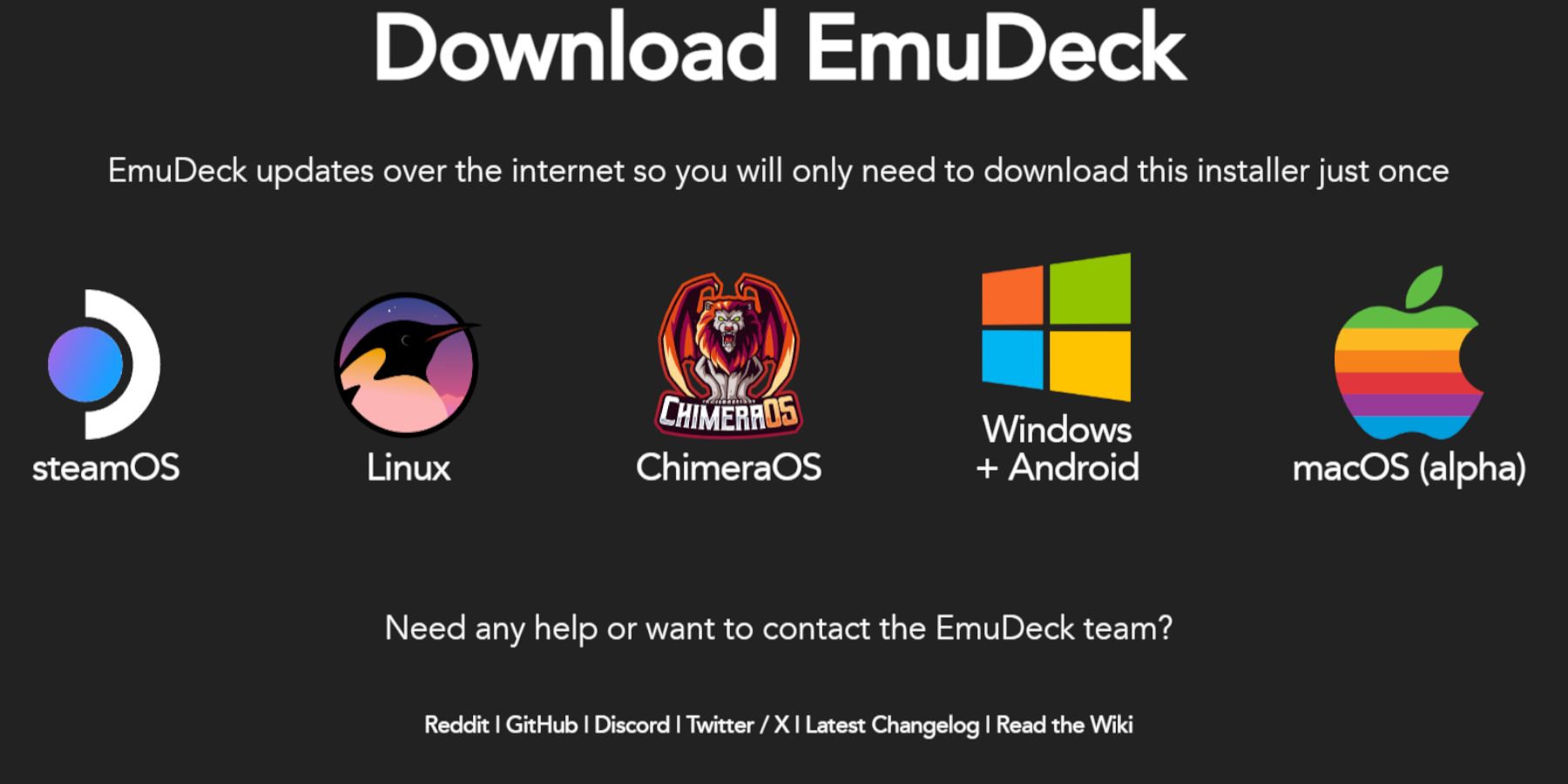 Let's get EmuDeck up and running:
- Switch to Desktop Mode on your Steam Deck.
- Open your preferred web browser and download EmuDeck from its official website.
- Select the SteamOS version and choose "Custom Install."
- Select your microSD card as the primary installation location.
- Choose your desired emulators (RetroArch, Emulation Station, Steam ROM Manager are recommended).
- Enable "Auto Save" and complete the installation.
- In EmuDeck's Quick Settings, enable AutoSave, Controller Layout Match, set Sega Classic AR to 4:3, and turn on LCD Handhelds.
Transferring ROMs and Using Steam ROM Manager
 Time to add your games:
- In Desktop Mode, locate your microSD card's
Emulation/ROMs/gamegear folder.
- Transfer your Game Gear ROMs into this folder.
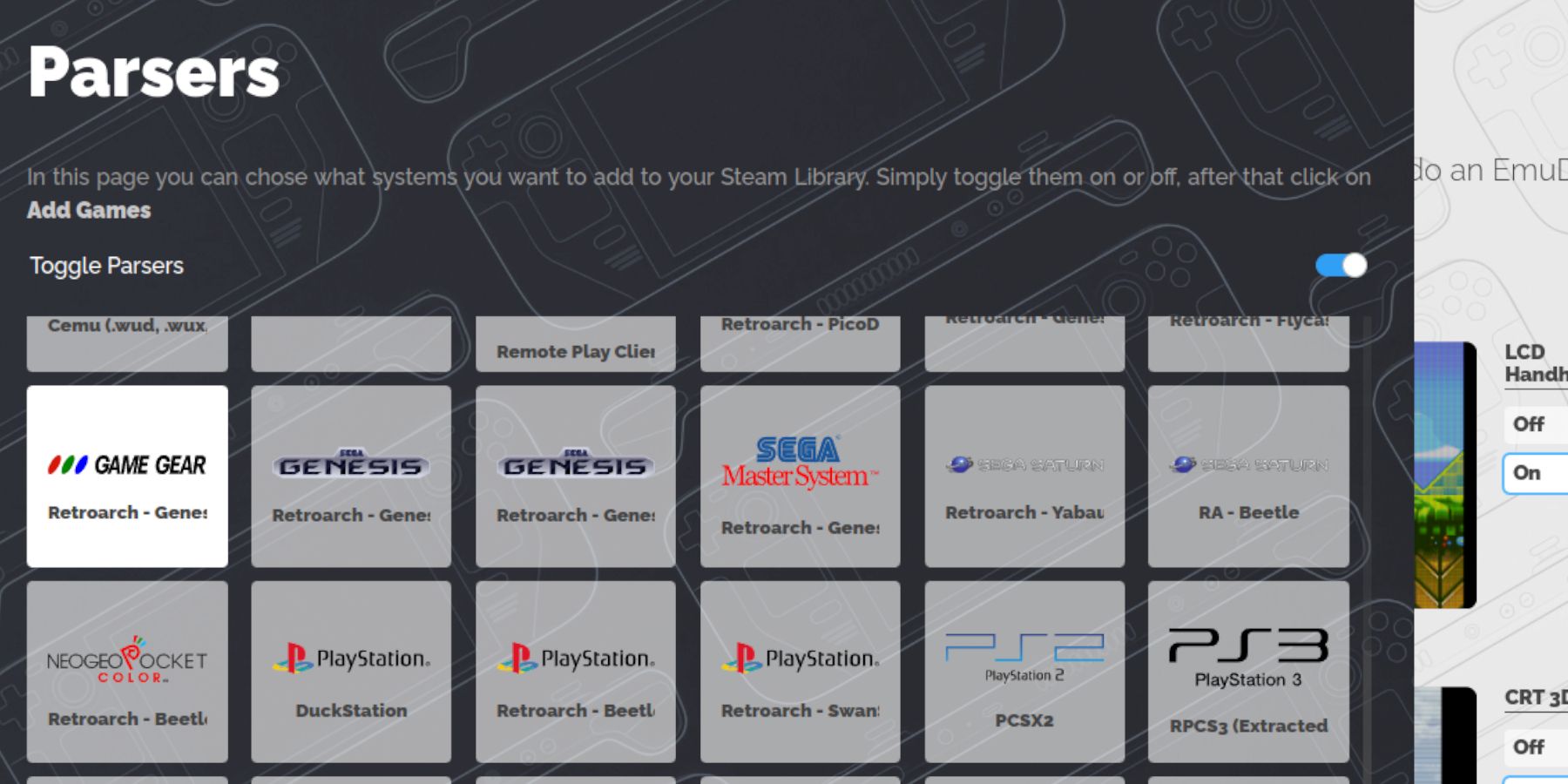
- Open EmuDeck and launch Steam ROM Manager.
- Follow the on-screen prompts, selecting the Game Gear parser and adding your games.
- Steam ROM Manager will automatically fetch artwork; proceed to "Fix Missing Artwork" if needed.
Fixing Missing or Incorrect Artwork
 If artwork is missing or incorrect:
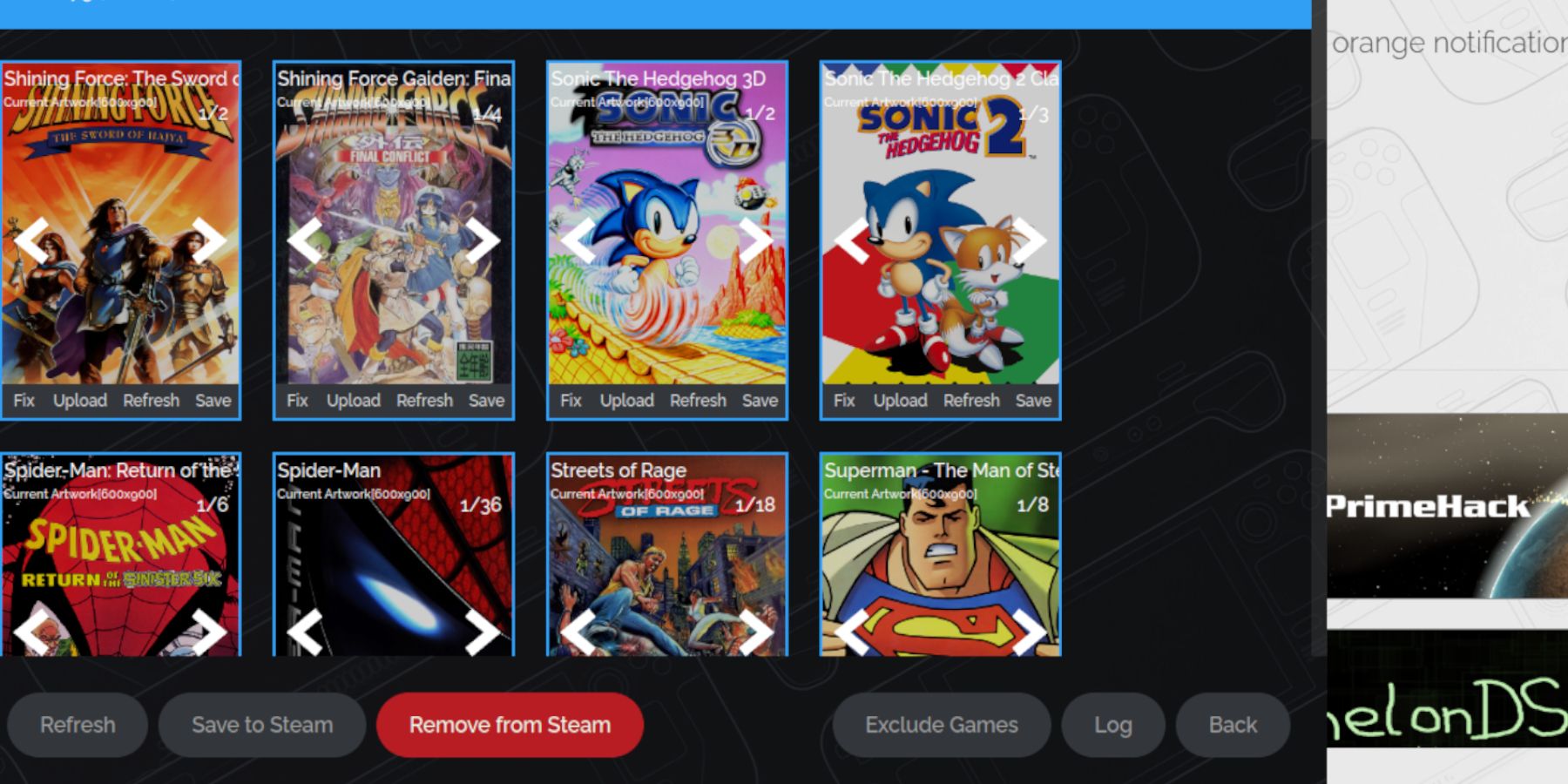
- Use Steam ROM Manager's "Fix" feature to search for and download the correct cover art.
- Ensure ROM filenames don't contain numbers before the game title, as this can interfere with artwork detection.
- Manually upload missing artwork by finding the image online, saving it to your Steam Deck's Pictures folder, and using Steam ROM Manager's "Upload" function.
Playing Your Games & Performance Tweaks
Now for the fun part!
- Switch back to Gaming Mode.
- Access your Game Gear games through the Steam Library's Collections tab.
- Launch a game and adjust the in-game settings (QAS button) to set the Frame Limit to 60 FPS for optimal performance.
Boosting Performance with Decky Loader and Power Tools
 For even better performance, install Decky Loader and the Power Tools plugin:
- In Desktop Mode, download Decky Loader from its GitHub page and install it using the recommended method.
- Restart your Steam Deck in Gaming Mode.
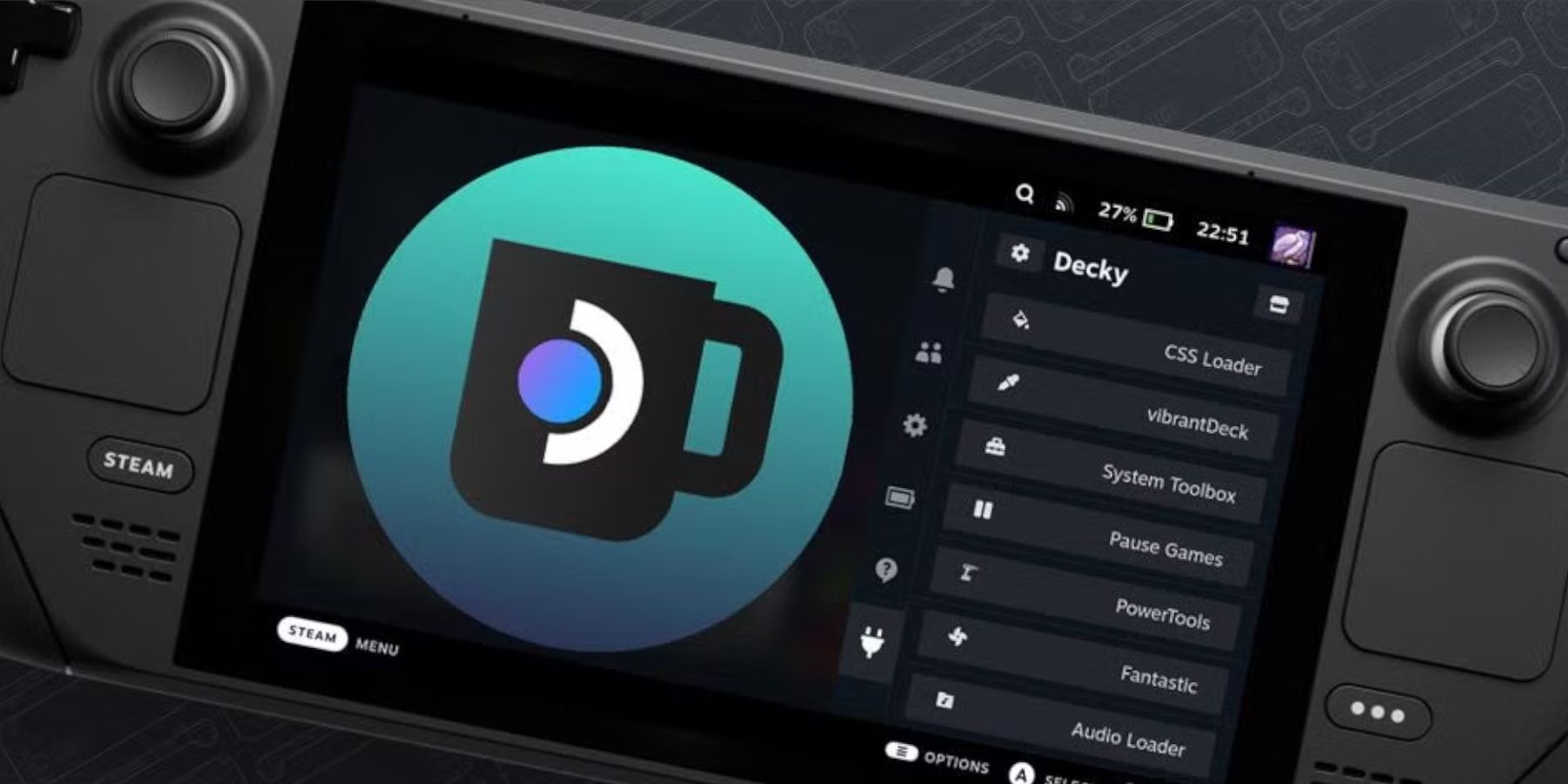
- Access Decky Loader through the Quick Access Menu (QAM).
- Install the Power Tools plugin from the Decky Store.
- Within Power Tools, disable SMTs, set Threads to 4, enable Manual GPU Clock Control, set the GPU Clock Frequency to 1200, and enable Per-Game Profile.
Restoring Decky Loader After a Steam Deck Update
 If a Steam Deck update removes Decky Loader:
- Switch to Desktop Mode.
- Download Decky Loader again from its GitHub page.
- Run the downloaded file (choosing "Execute," not "Open"). Enter your sudo password when prompted.
- Restart your Steam Deck in Gaming Mode.
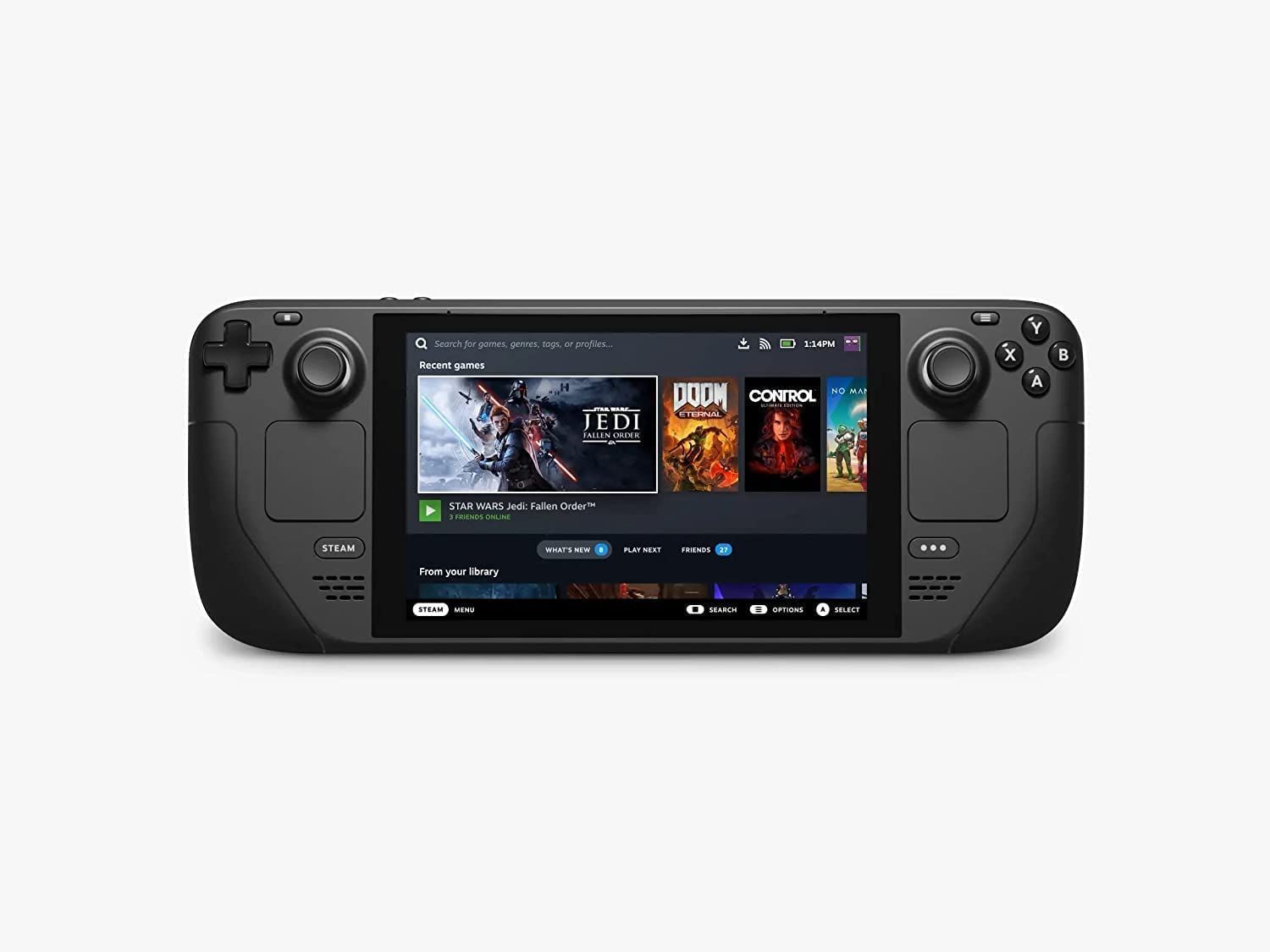 Enjoy your retro gaming experience on your Steam Deck! Remember to rate this guide!

 LATEST ARTICLES