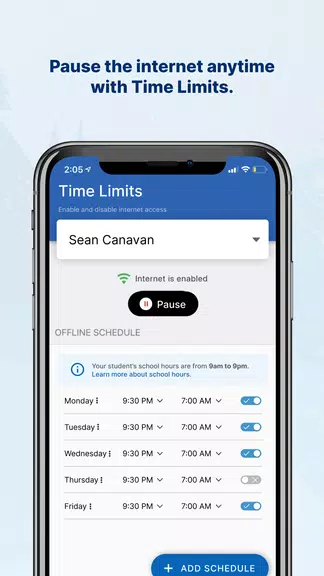
Want to know what your child is doing on their school-provided devices? The GoGuardian Parent App allows you to easily monitor the websites, apps, and extensions your child is using. Track teacher interventions—such as screen locks and tab closures—and have more productive conversations with your child about their online behavior. You can also set internet restrictions for devices at home, creating a safe and focused digital space. Additionally, view full browsing history and block specific websites outside of school hours. Stay engaged and informed in your child’s digital life with the GoGuardian Parent App.
GoGuardian Parent App Features:
1. View Online Activity
Parents can see the top five websites their child visits on school devices. This helps you understand the content they engage with and encourages open conversations about responsible internet use.
2. Monitor Apps and Extensions
Get insights into the top five apps and extensions used by your child. This makes it easier to identify the tools they rely on and confirm they're appropriate for learning.
3. Track Teacher Interventions
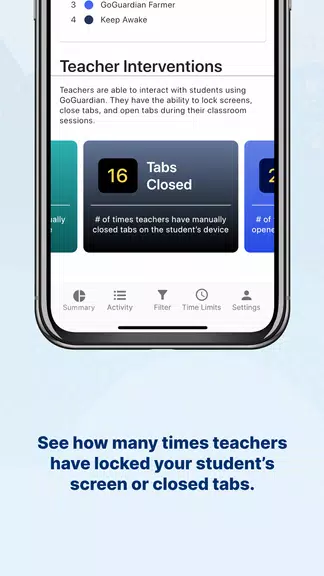
See when teachers lock your child’s screen or close tabs during class. This feature offers a window into how your child is participating and how classroom time is being managed.
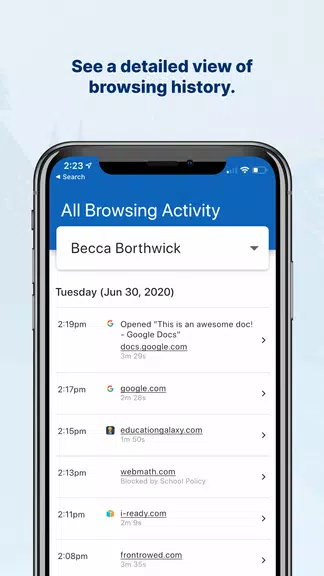
4. Access Detailed Browsing History
View a comprehensive log of your child’s browsing history. Use this information to better understand their habits and guide conversations around safe online practices.
5. Choose Custom Time Periods
Pick specific time ranges to display activity data. This makes it simple to observe trends and customize monitoring based on your schedule and priorities.
6. Block Websites
Block access to specific websites on school-issued devices after school hours. This empowers you to promote healthier screen time and keep your child focused when it matters.
Tips for Parents:
⭐ Use the app to start meaningful conversations with your child about their internet activity. Teach them how to use technology safely and responsibly.
⭐ Set boundaries on certain websites or apps to help your child stay focused on homework and learning during study time.
⭐ Check the app’s reports regularly to stay up-to-date on your child’s digital behavior and address any issues early.
⭐ Manage internet controls on school devices during evenings and weekends to help your child build balanced tech habits.
Final Thoughts:
The GoGuardian Parent App helps you stay connected and involved in your child’s digital education. Use the features and tips shared here to create a safe, productive online experience. Take charge of their digital world and guide them toward responsible technology use. Download the app today and start managing your child’s school devices with confidence.



 Download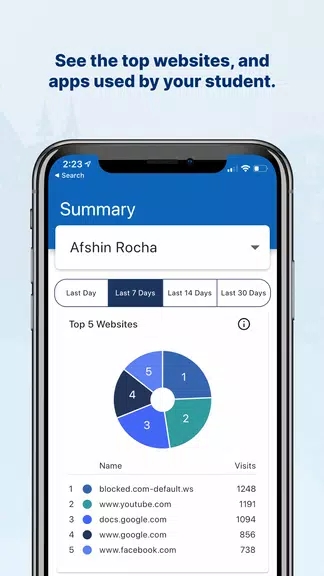
 Application Description
  Apps like GoGuardian Parent App